
As you know this marketing strategy is aimed at creating new opportunities on the back of your last successful completion, Prospect allows you to create these opportunities on the back of all of your current stock from new instruction to completions.
We will automatically list your recent successes here for you to build your campaign around; simply click to select.
By default the system will target a radius of 250 properties closest to your listing, but you can take that all the way down to 1 or up to 5000.
Filter Addresses allows you to be specific about who you’re contacting based on property type, bedroom number and estimated property value.

You can further refine your target audience by using additional filters such as: floor area, plot size, tenure and more. Select as required and click apply filters.
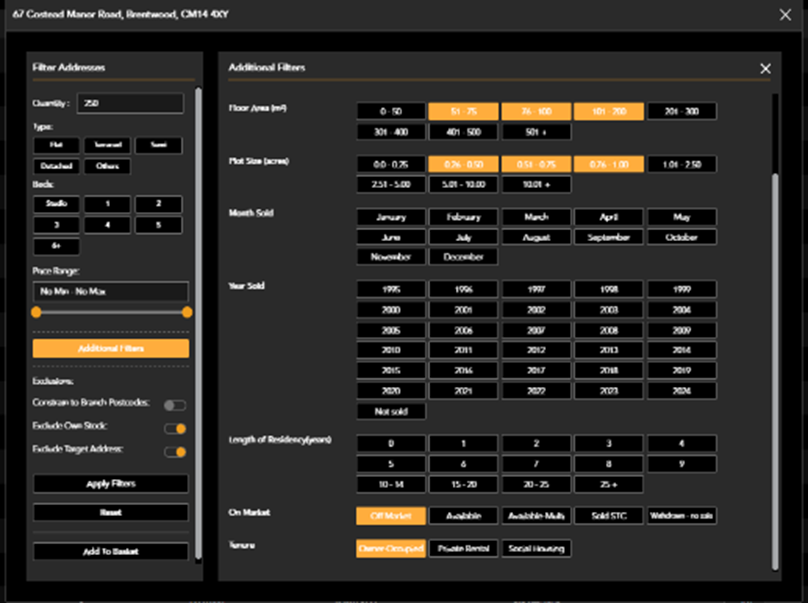
Exclusions can be set as per the area search:
- Constrain to branch postcodes. This is defaulted to yes, meaning all addresses shown in your mailing list are within the postcode areas assigned to your account. If switched to no, addresses outside of your postcode areas will be shown until the addresses list meets the number you selected to send to.
- Exclude own stock will default to yes. This will exclude any properties currently listed by your agency, based on your portal ID’s, from the mailing list.
- Exclude Target Address will exclude the address you are creating a campaign from.
Once you have your list filtered as required, click add to basket.
To complete your order, click into your basket.
You will see your order listed in the basket, you are able to select and edit your template, add a Job reference, check the cost, and view the recipient addresses.
A red ! will show over the template button until it is opened and marked as approved.
If you are ready to proceed tick the box that you have checked the template and then click Confirm Buy and Send, it will then be sent to print.
