Type the URL into the text box and click Add new QR code.

You’re able to re-size and change the colour of the QR code, as well as reposition it on your template.
N.B. QR codes shown on templates within collections are examples only and do not have a destination. These need to be edited prior to sending.
Data Capture
Using the Sprift QR code you are now able to collect contact information of anyone who scans the QR code and downloads a property report.
The QR code on your template can be updated at basket level to a Sprift QR code by using the toggle in the template editor.
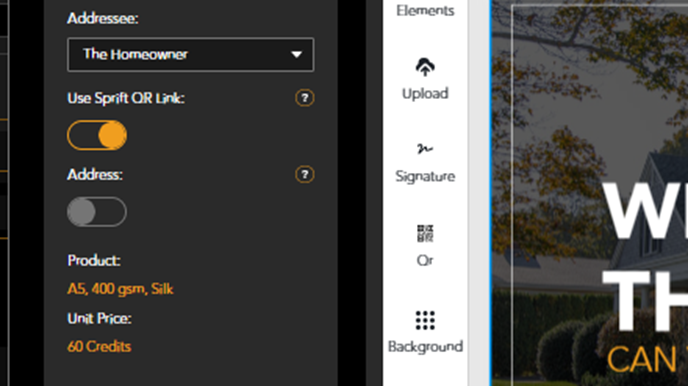
When selected, a QR code will appear on your template and can be repositioned or resized as required.
Your template can then be approved and sent as normal.
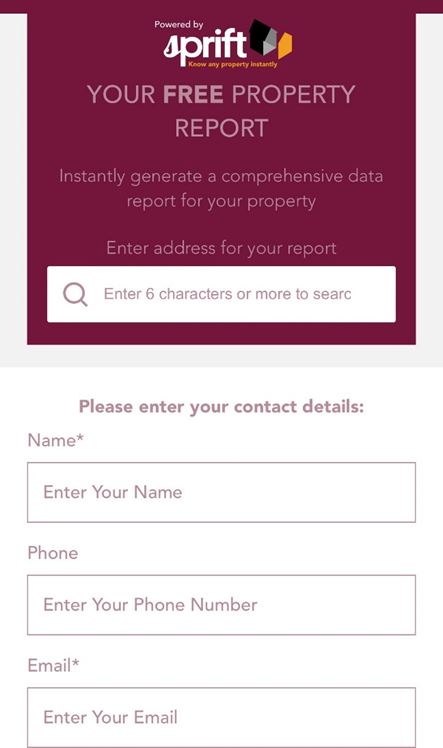
When a customer scans the QR code, a landing page with your company branding and contact details will open.
They will be required to enter their name and email address to download the property report for their address.
You will be notified by email when the QR code has been scanned and contact details entered.
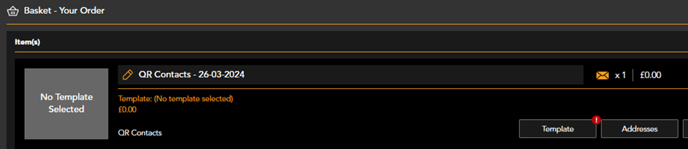
The contact details can be found in ‘QR Contacts’ on the system.

You can create a follow up mailing from here by clicking the envelope symbol and adding to basket.