
Map Search is useful if you have a centre point postcode of a property that you have just sold, is for sale or the office and you want to mail a radius around that area. The centre point address will default to your branch address unless an address is added to the search bar.
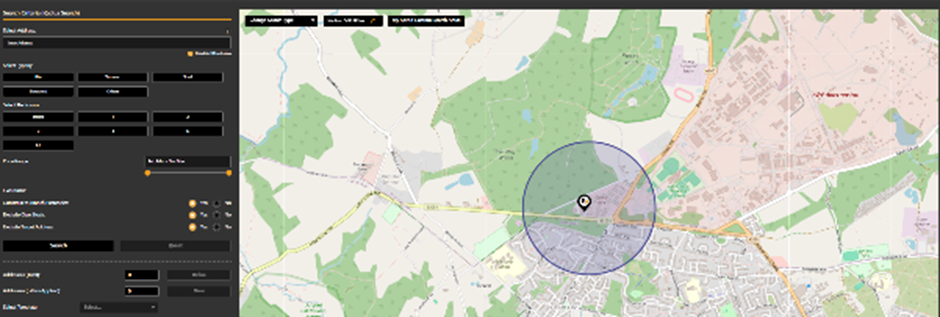
You can adjust the size of your radius by increasing or decreasing the size of the central circle. This can be edited by using the pencil icon in the radius box and typing a new radius.

Or using the edit function and dragging the radius point to increase or decrease as needed.

Within Map Search you are also able to draw points to map out exactly where you want to mail by simply clicking the areas of the map and joining them up. This will then give you a totalling of all the properties available to mail.
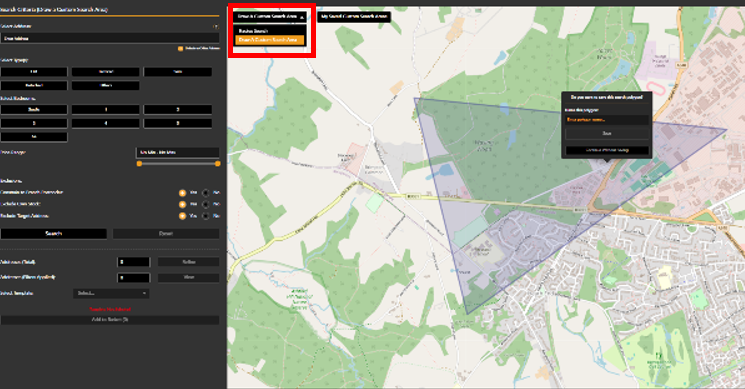
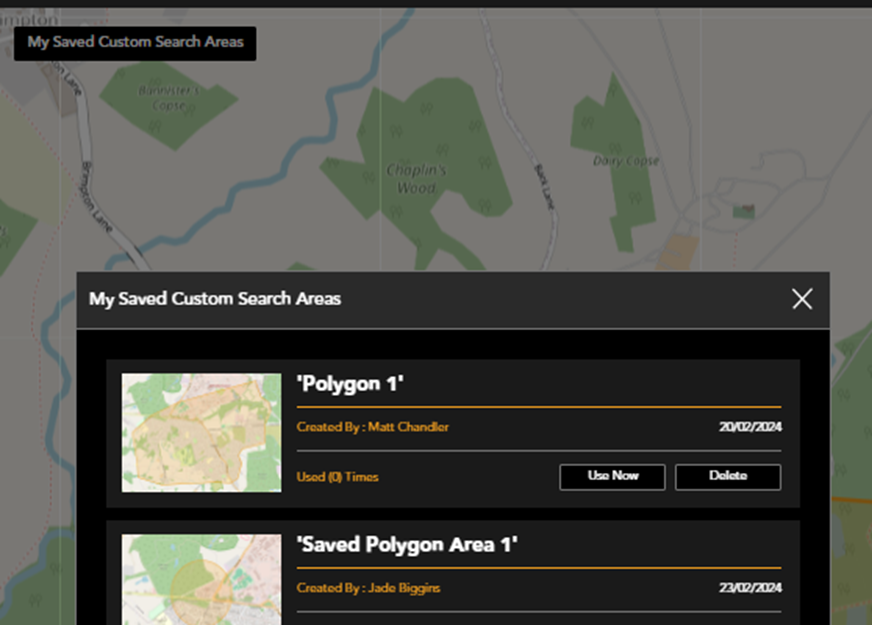
Once you have drawn your points you are able to save your polygon created to use again in the future. This is useful if you know certain areas or apartment blocks will be mailed often.
Simply click into the polygon to name and save your search area. These search areas will be saved in My Saved Custom Search Areas to be accessed again when required.
Initial filters can now be applied, if required, before searching. Property type, bedroom number and price range.
Exclusions can be set:
- Constrain to branch postcodes. This is defaulted to yes, meaning any properties within your polygon that are not within the postcode areas assigned to your account will not be shown. If switched to no these addresses will be pulled into your search.
- Exclude own stock will default to yes. This will exclude any properties currently listed by your agency, based on your portal ID’s.
- Exclude Target Address will exclude the centre point address you added to the search bar, a copy of the campaign will not be delivered here.
Your search can then be refined using additional filters.
Council tax bands, property types, private rentals and social housing in tenure (whether a property is a private rental or owner occupied) and EPC rating are some of the key features you may want to consider.
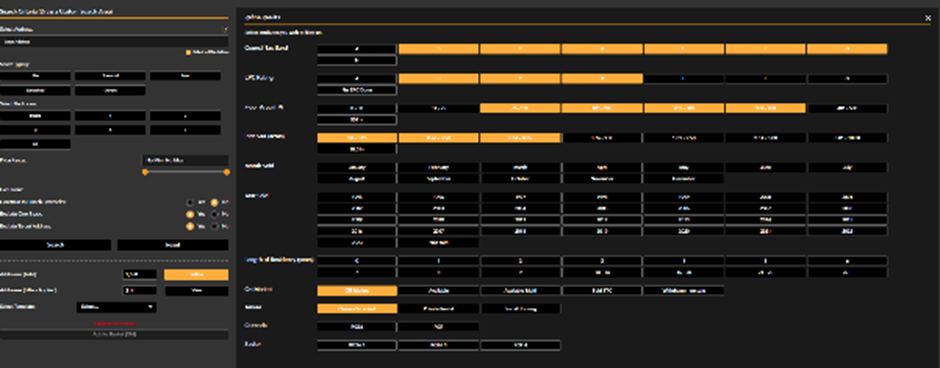
Your address count will update as you select filters.
Once you are happy with your selection, click View, and this will take you to your address list.
If you wish to remove a property from that list; de-select the envelope icon to the right of the address line.

Once happy select a template from the drop down that is appropriate to your campaign and click add to basket.
To complete your order please click into your basket.
You will see your order listed, you are able to change or edit your template, add a Job reference, check the cost, and view the recipient addresses.
A red ! will show over the template button until it is opened and marked as approved.
If you are ready to proceed tick the box that you have checked the template and then click Confirm Buy and Send, it will then be sent to print.