
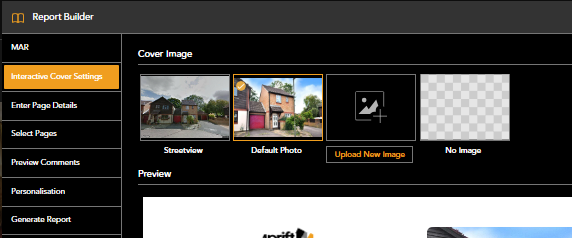
By default, the report uses the Google Street View image.
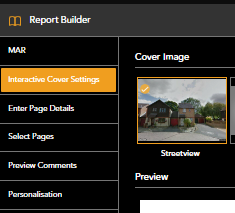
However, if you find that the image is incorrect or inaccurate, you have the option to change it. Google Street view is incorrect
Alternatively you can upload an image or use one from the gallery to be shown on the front cover of your interactive reports.
To use an image from the gallery
Open the gallery page where you will see all images associated with the property from portal listings
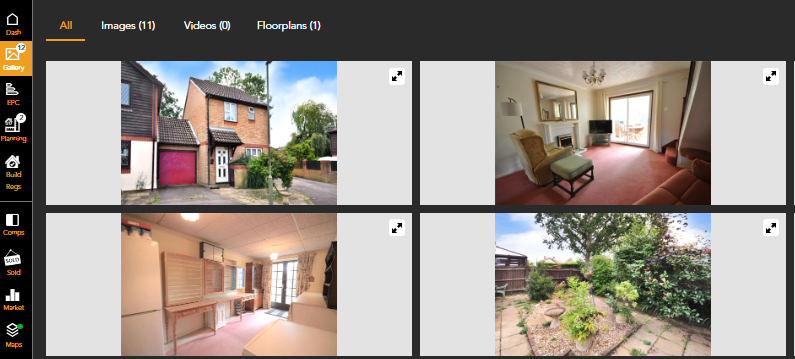
Select the image you wish to use and click 'Cover Photo'
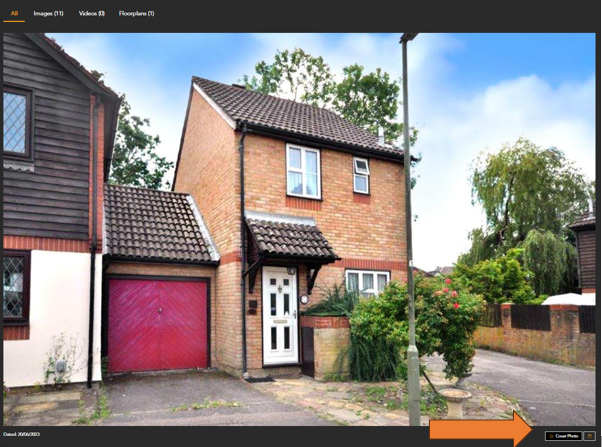
The image will now appear and be selected by default on the interactive cover settings page of the report builder
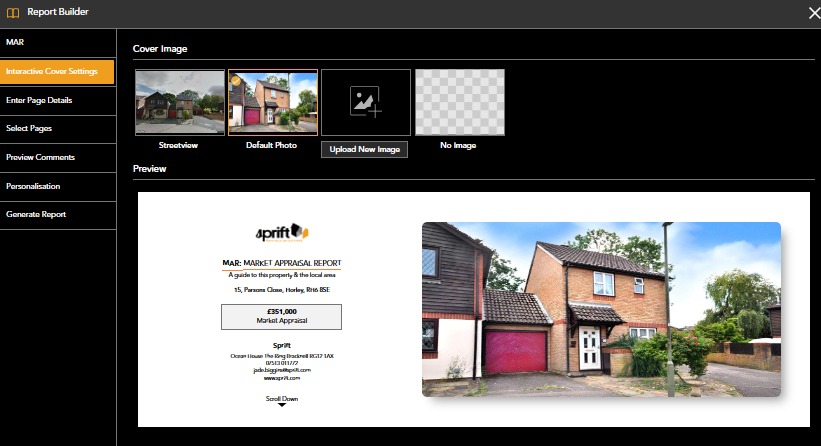
Upload an image
If there are no images available within the gallery or you have a better quality image to use, you can upload this to the report builder.
- Open report builder and select the report you wish to create
- Select interactive cover settings from the left hand menu
- Upload new image
- A pop up will open allowing you to select an image from your computer
- This will then be selected as default for the report
You can choose between images by selecting them on the Cover image section of the report builder.
Watch our step by step tutorial
If you have any questions or run into any issues, don't hesitate to reach out to our support team at customer.success@sprift.com or 0207 096 0847.
We're always here to help you get the most out of the platform.