
If the floorplan is not being displayed in the gallery on the dashboard or if it doesn't correspond to the live listing on the portals, there is a simple solution. You can manually add the correct floorplan yourself. This will ensure that potential buyers or renters have an accurate representation of the property layout.
Remove the existing floorplan:
- Open Gallery > Select floorplans
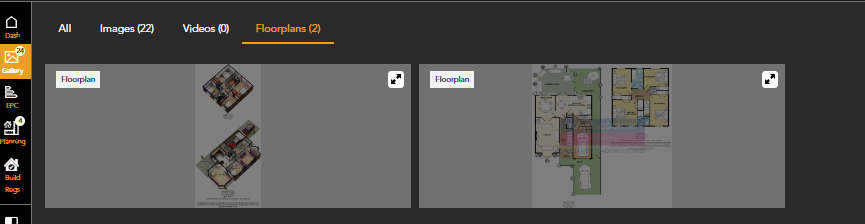
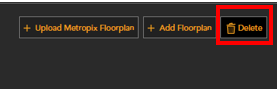
- Click delete in the top right hand corner > Select the floorplan/s you wish to remove by clicking on them
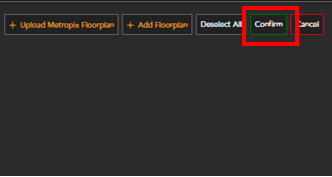
- Click 'confirm' to remove
Add floorplan from portals:
- Once you have removed the floorplan a list of live on market and sold listing from the portals will be shown.
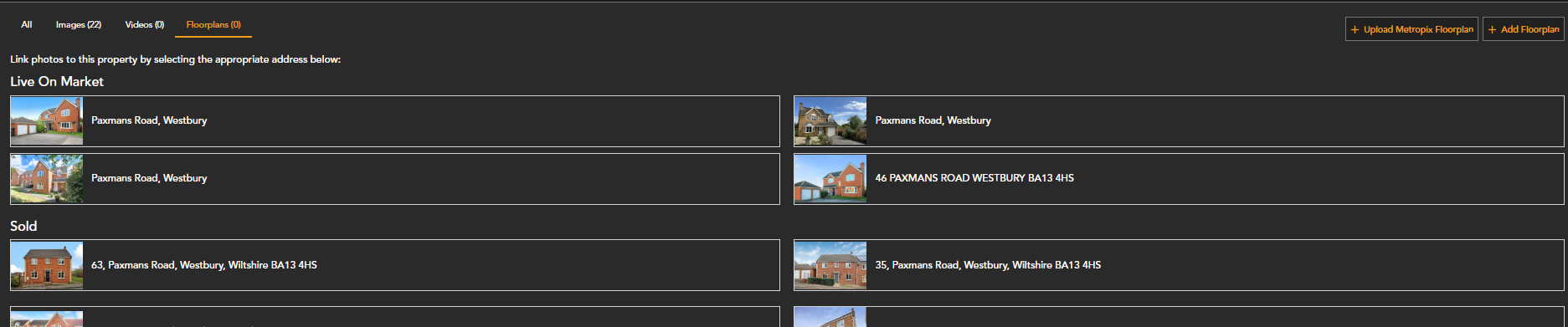
- When a listing is selected all images and floorplans associated will be pulled into the Sprift dashboard.
Add floorplan from Metropix:
- Floorplans can be uploaded from Metropix by selecting the 'Upload Metropix floorplan' option
- When selected a pop up will open, the Metropix code can be entered here.
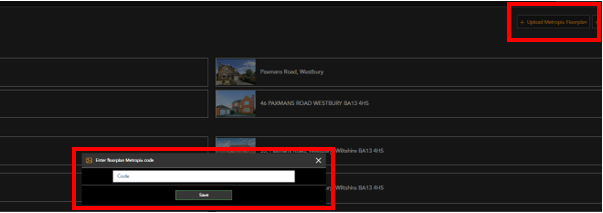
- Once saved, the floorplan will appear on the Sprift dashboard.
Add Jpeg or PDF floorplan:
- You can manually upload a floorplan from your files using the 'Add floorplan' option
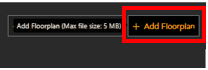
- Clicking this will allow you to select a PDF or Jpeg file of the floorplan to add to the dashboard.
- Select your file and save.
- Please note: the maximum file size is 5mb
For a visual walkthrough of this process, check out our video tutorial.
If you have any questions or run into any issues, don't hesitate to reach out to our support team at customer.success@sprift.com or 0207 096 0847.
We're always here to help you get the most out of the platform.